Overview
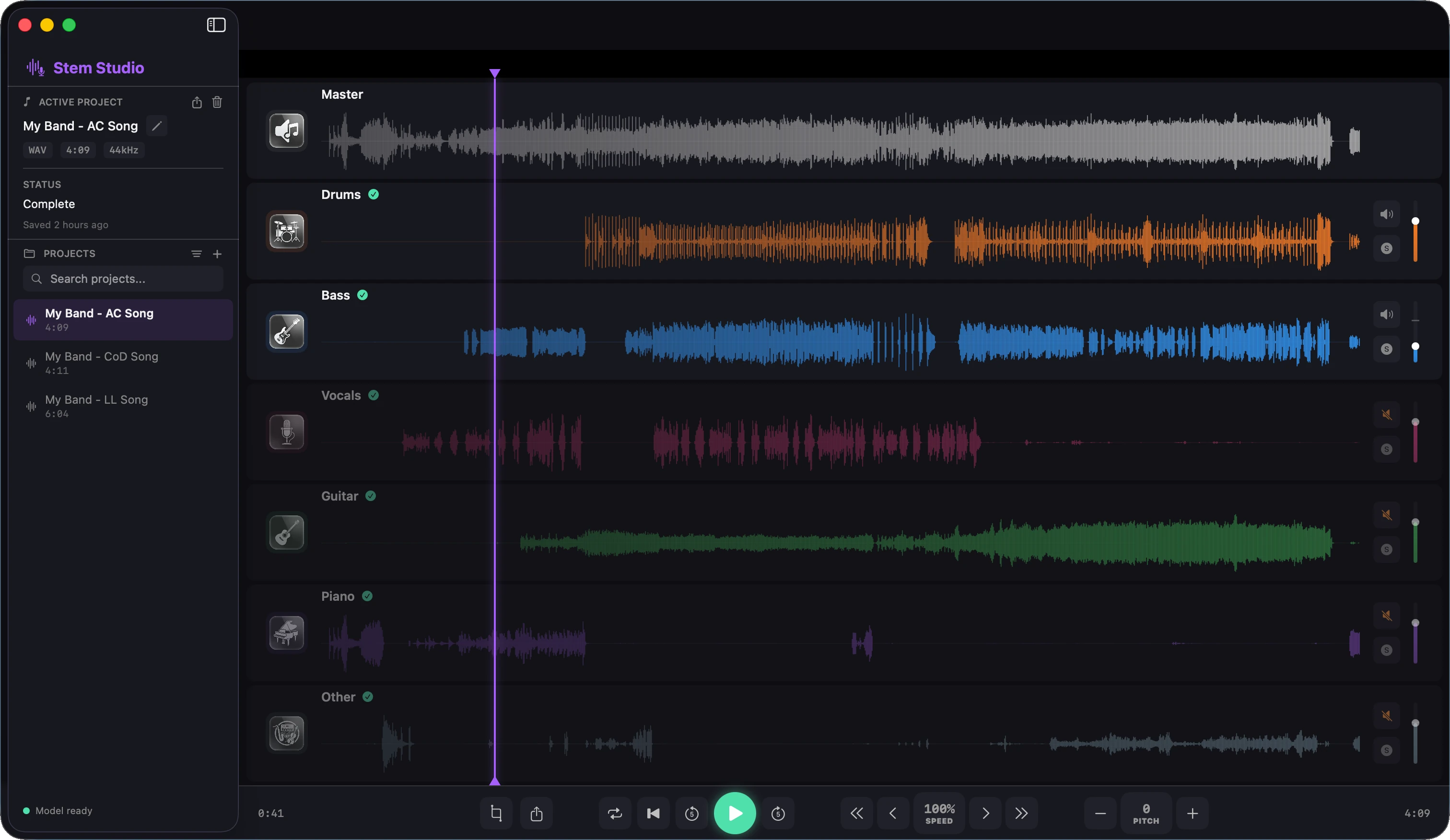
Stem Studio is a native macOS application that uses an on-device AI model to separate any
song into its individual musical components — called stems. The entire process
runs locally on your Mac using Apple's Neural Engine, so no audio is ever uploaded
anywhere.
Whether you are a musician who wants to create a karaoke track, a producer studying an
arrangement, or an audio engineer isolating individual instruments, Stem Studio gives
you clean, high-quality stems in a few clicks.
Importing Audio
You can import audio in two ways:
A
Drag and drop — drag any audio file directly from Finder onto the centre
drop zone. The file is loaded instantly and a new project is created automatically.
B
File menu — choose File → Open… (or press ⌘O) to
pick a file from the standard macOS open panel.
Supported formats: MP3, WAV, AIFF and AAC (M4A). Stem Studio reads the
file at its native sample rate — no re-encoding before processing.
Separating Stems
Once you have loaded an audio file, the AI separation starts automatically. Here is what
happens step by step:
1
The file is decoded and prepared for inference. The sidebar shows the project status
changing to Separating…
2
Stem Studio uses Demucs v4
to process the audio in chunks on the Apple Neural Engine. A progress bar in the sidebar
shows the overall completion percentage.
3
When inference is complete the six stem tracks appear in the centre panel, each with its
own waveform visualisation.
Tip: Processing speed depends on the chip. On an M2 MacBook Air a
3-minute song typically takes 60–90 seconds. The app remains fully responsive during
inference — you can manage other projects in the sidebar while waiting.
Projects
Every imported file creates a project that is automatically saved to disk.
Projects store the original audio reference and all separated stems so you never need to
re-process the same song.
📂
Open a project — click any project row in the sidebar to load it into
the centre panel.
✏️
Rename a project — hover over a project row and click the pencil icon,
or hover the active project title in the upper sidebar. Press Return to confirm or
Escape to cancel.
🗑️
Delete a project — hover over a row and click the trash icon. You will
be asked to confirm. This action permanently removes all stems and
project data from your disk.
🔍
Search projects — use the search field at the top of the project list to
filter by name.
↕️
Sort order — click the sort icon next to the Projects header to toggle
between ascending and descending chronological order.
Exporting
When separation is complete you can export all stems as individual WAV files:
1
Click the export icon (↑) in the active project header in the sidebar.
2
Choose a destination folder in the standard macOS save panel.
3
Stem Studio writes six WAV files — one per stem — to the chosen folder. A progress bar in
the sidebar tracks the export.
4
When complete, a confirmation dialog appears with a Show in Finder button to
open the export folder directly.
File naming: Exported files follow the pattern
ProjectName_stem.wav — for example MySong_vocals.wav,
MySong_drums.wav, etc.
Frequently Asked Questions
How long does separation take?
On an M2 MacBook Air a 3-minute song takes approximately 60–90 seconds.
Longer songs and older chips will take proportionally more time. The progress bar keeps
you informed.
Can I use Stem Studio without an internet connection?
Yes, completely. All AI processing is on-device. Once the app is installed
you need no internet connection at all.
My stems have some bleed from other instruments. Is that normal?
Stem separation is a hard problem, especially for dense mixes. Stem
Studio's AI model is one of the best available, but perfect isolation is not
always possible. Bleed is more common in heavily layered productions or where
instruments share a similar frequency range.
What audio formats are supported for import?
MP3, WAV, AIFF and AAC (M4A) are supported. Other formats may work if macOS
can decode them natively, but only the listed formats are officially tested.
Are my projects stored in iCloud?
Projects are saved in the app's local container on your Mac. If you have
iCloud Drive Desktop & Documents syncing enabled in macOS, they may be included in your
iCloud backup, but Stem Studio itself does not upload anything.
Can I run multiple separations at the same time?
Not simultaneously — the AI model processes one project at a time to ensure
the best performance. You can queue files by creating multiple projects; each will be
processed in turn.
The model status shows "Model unavailable". What should I do?
This means the bundled Core ML model could not be loaded. Try quitting and
relaunching the app. If the issue persists, please contact support with the macOS
version and Mac model you are using.